

Get Started
Start Recording
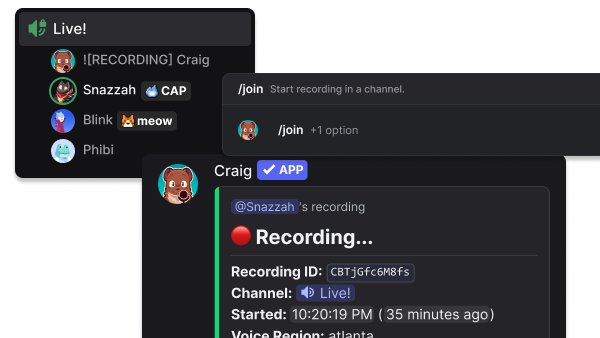
You can start a recording by joining a voice channel and using the /join command. You can also specify a channel in the command.
Download
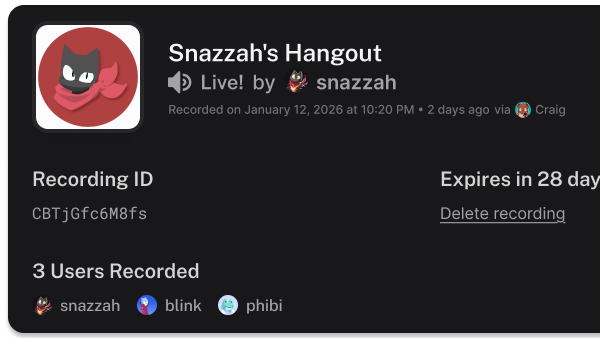
After recording, you should’ve gotten a DM with information about your recording, if not you can use the /recordings command to get the link. You can download the recording through the link in that message, choose a format, and wait for the recording to be processed.
Tips & Features
Make Notes During Recording
You can use the /note command or use the "Add a note" button during a recording to add timestamped notes. These notes will appear in your recording info, making it easy to find important moments later.
Set Up Access Roles
Use the /server-settings access-role command to configure which roles can start their own recordings in your server.
Support the development of Craig
Craig is free to use. Supporters unlock extra workflow tools starting at $1/month.
Automatically upload recordings to Google Drive, Microsoft OneDrive, and Dropbox.
Extended recording expiry up to 30 days and record up to 24 hours.
Have your recordings transcribed and made available in different formats like WebVTT, SRT, and plain text. (Tier 3 supporters only)
Get started with Craig!
Add Craig to your server and record anything in Discord voice channels and stage channels.